Turn the 3D view
Orrery draws your DXF from the view you see. Turn the part until the view is right, then convert. The direction and the roll go into the drawing.
Mouse and touchpad
| To | Do this |
|---|---|
| Turn the part | Drag with the left mouse button |
| Move the view | Drag with the right or middle mouse button, or hold Ctrl and drag with the left button |
| Zoom | Turn the mouse wheel, or pinch on a touchpad |
| Go back to the start view | Click Home under the cube |
The cube
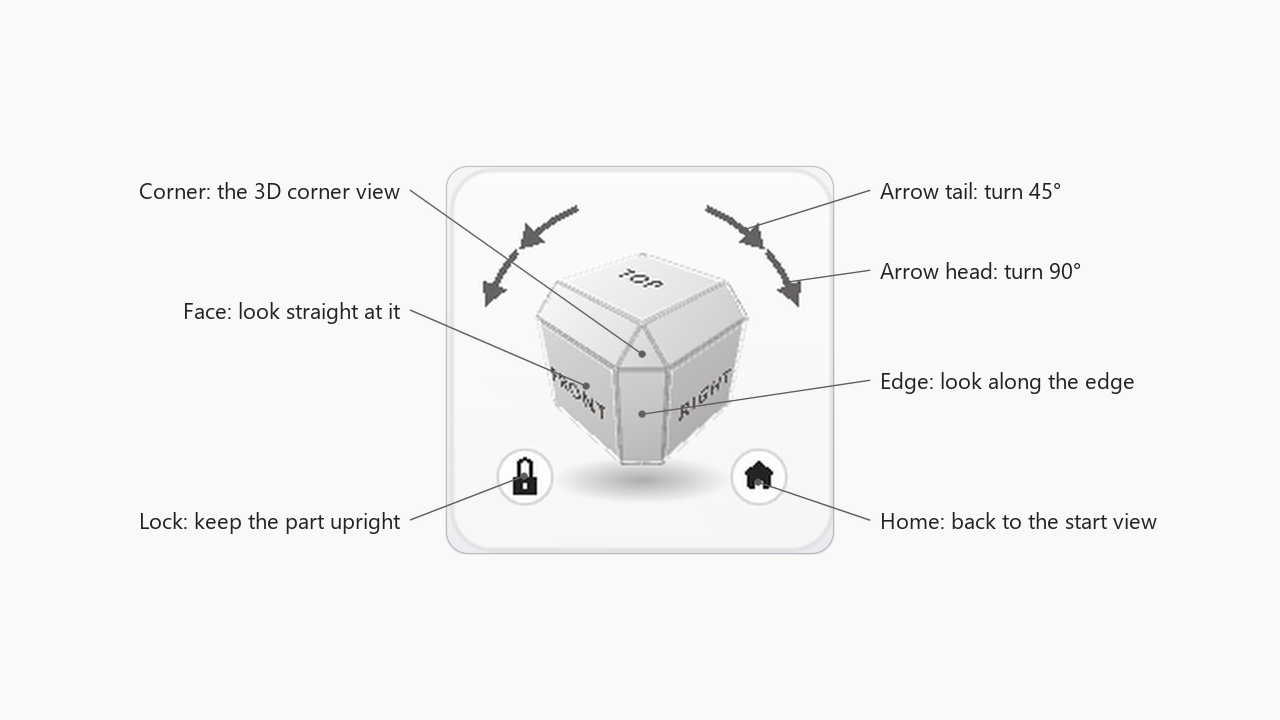
The cube in the corner shows which way you look at the part.
- Click a face (Front, Top, Right ...) to look straight at that side.
- Click an edge or a corner to look from between two or three sides.
- Drag the cube to turn the part, the same as a drag in the view.
- The arrows turn the picture. Click the tail of an arrow to turn 45°, or its head to turn 90°.
Free or locked
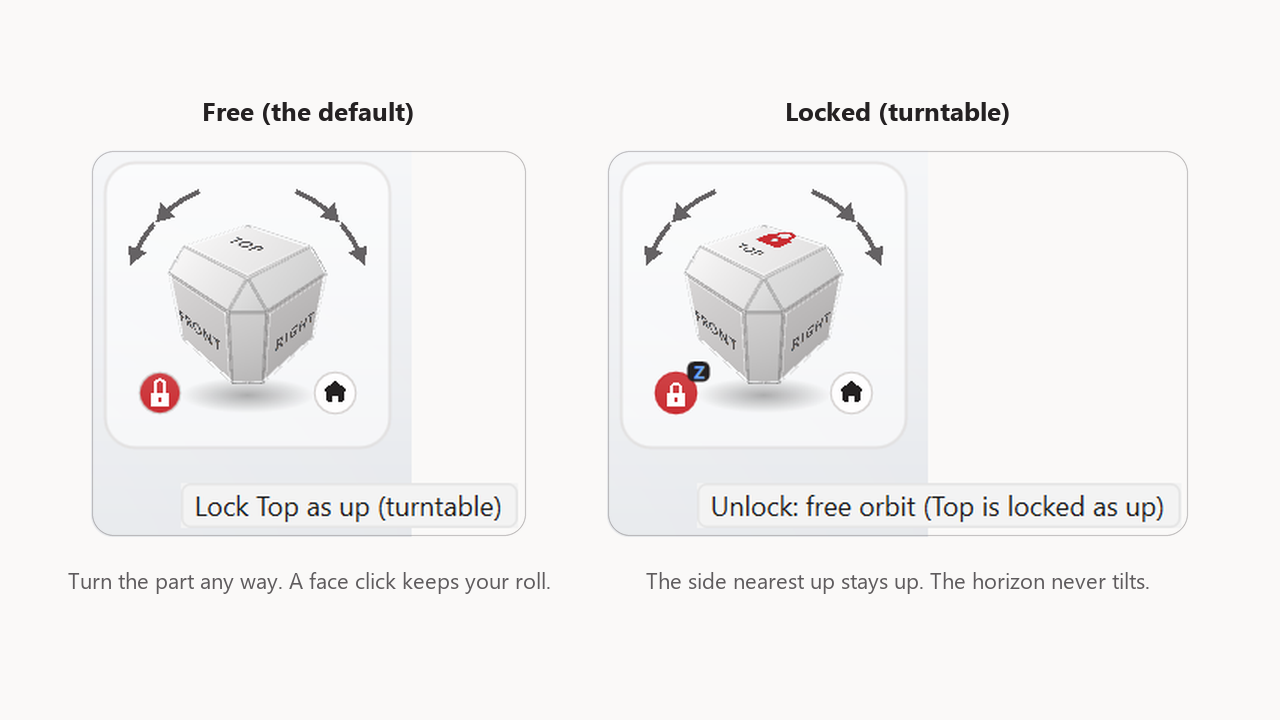
Free (the default). You can turn the part in any direction. A face click keeps your roll: a straight view stays straight. The arrows roll the picture.
Locked (turntable). Click Lock under the cube. The side that is nearest to “up” now stays up, like a part on a turntable.
- A drag spins the part around that axis. The horizon does not tilt and you cannot turn over the top.
- The arrows turn the part around the axis.
- A red padlock shows on the locked face, and the Lock chip shows X, Y or Z.
- Click Lock again to go back to free. The view does not move.
- Home also clears the lock. Each new 3D view starts free.
Use the lock when you want the part to stay upright, for example a part that stands on a DIN rail, and you only want to choose the side to look from.
Tips
- Not sure which way is up? Click Home, then click the face you want.
- The Direction box under the view shows the exact direction. You can type a direction there.
- Tick Like the DXF to see the flat outline in the 3D view before you convert.
Coming soon to the Microsoft Store